
Leads
A lead can reach you through your contact form, an email or a Telegram message, or you can find them yourself: an Upwork job, a Fiverr request, someone on LinkedIn, a friend's referral. Leads keeps all of them in one list, shows where each came from, and links each one to the workspace project it belongs to.
Open app.devghouse.com/leads.
1. Add a lead from Upwork, Fiverr or LinkedIn
Click Add lead, give it a name, then paste the link to the original post into Link to the original post. An Upwork, Fiverr, Freelancer or LinkedIn link fills in Where they came from for you. For a referral or anything else, pick the source yourself.
Pick the Project the lead belongs to, for example the proof of concept you are building for them, add a label or two, and Save lead. Save & add another keeps the form open for the next one.
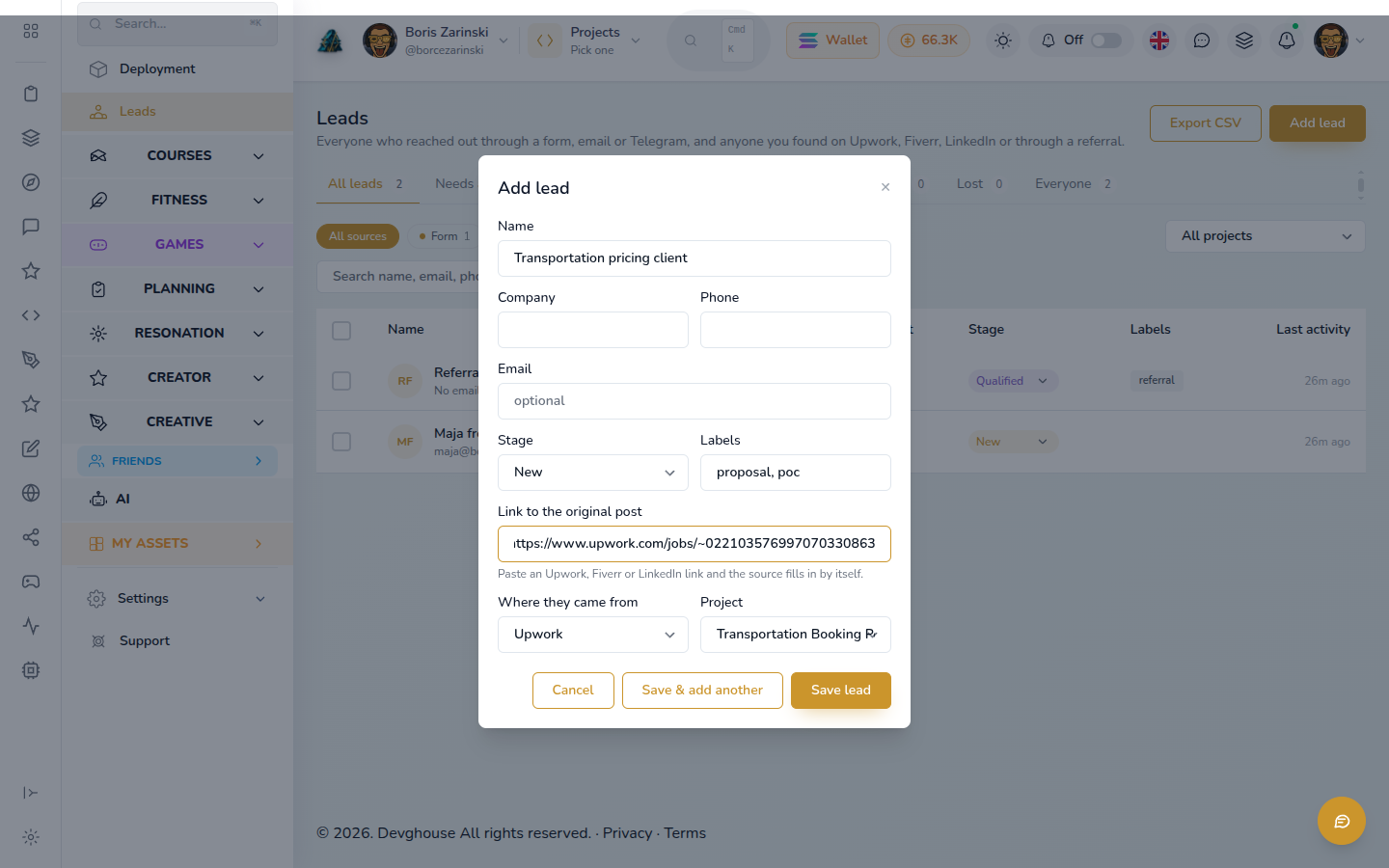
Form, email and Telegram leads arrive by themselves; you never add those by hand.
2. See where every lead came from
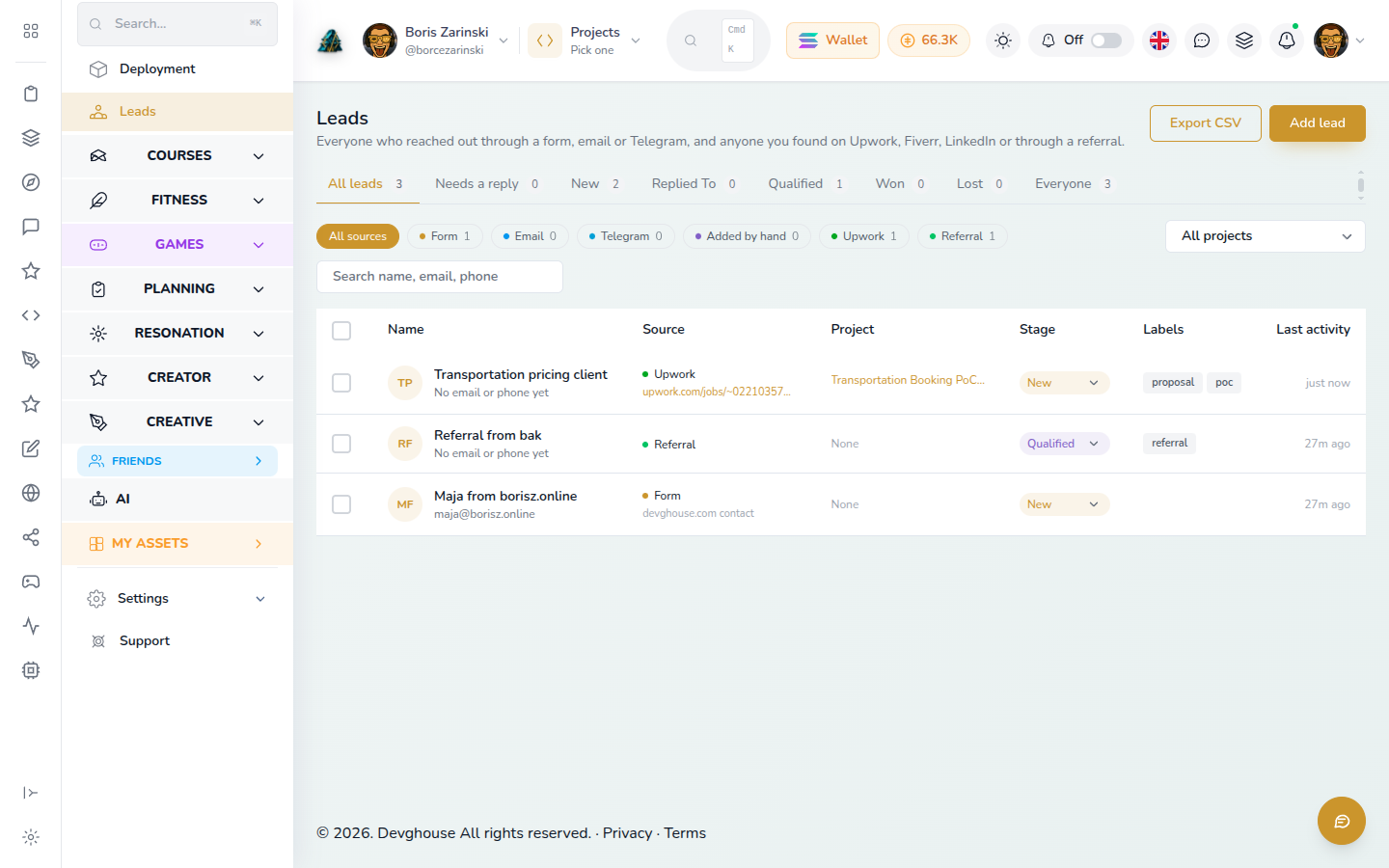
Each row shows the source, a short link back to the original post and the linked project. The chips above the list count leads per source; click one to see only those.
3. Filter by project
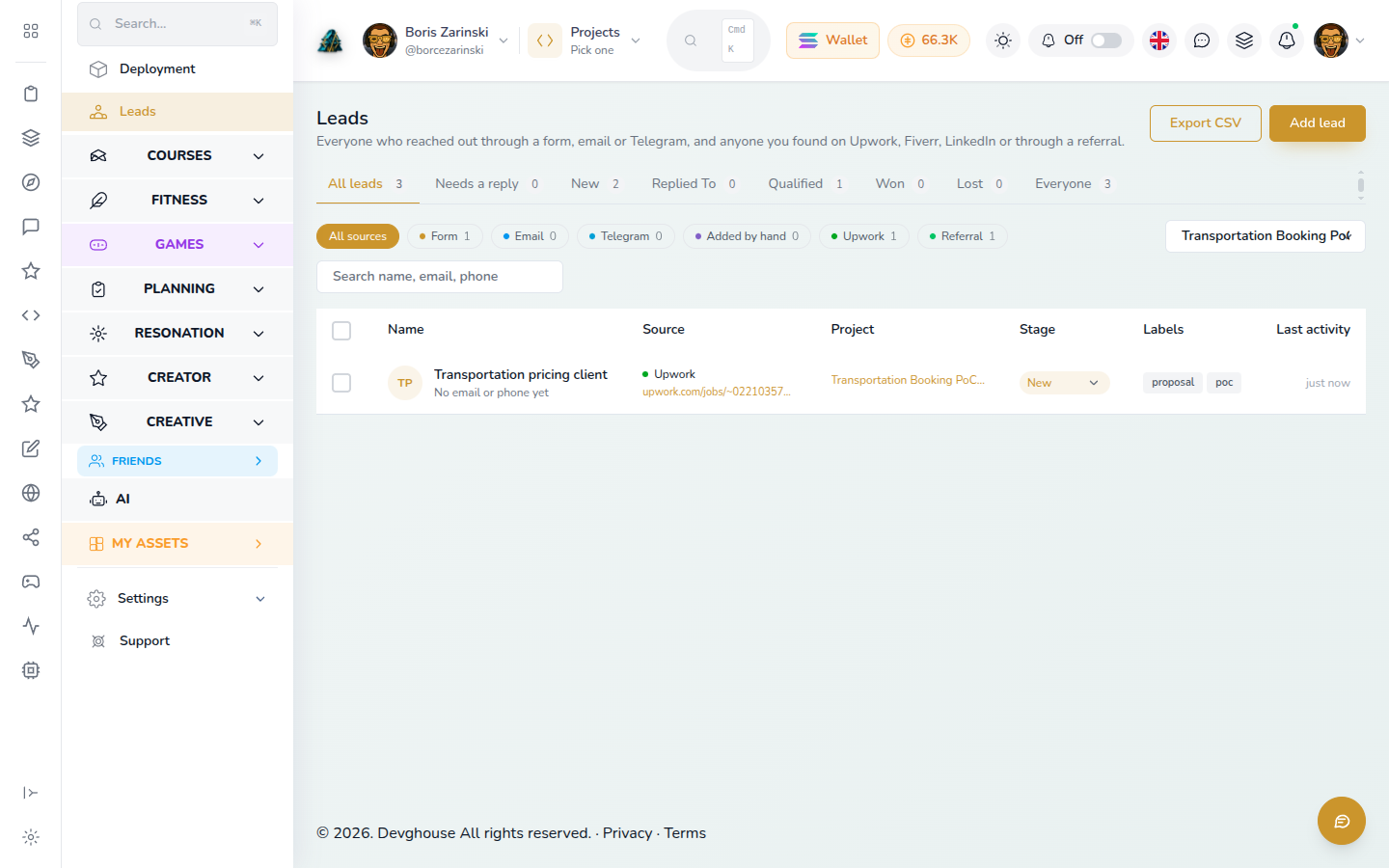
All projects narrows the list to one project's leads. The choice stays in the address, so you can bookmark it.
4. Work the lead
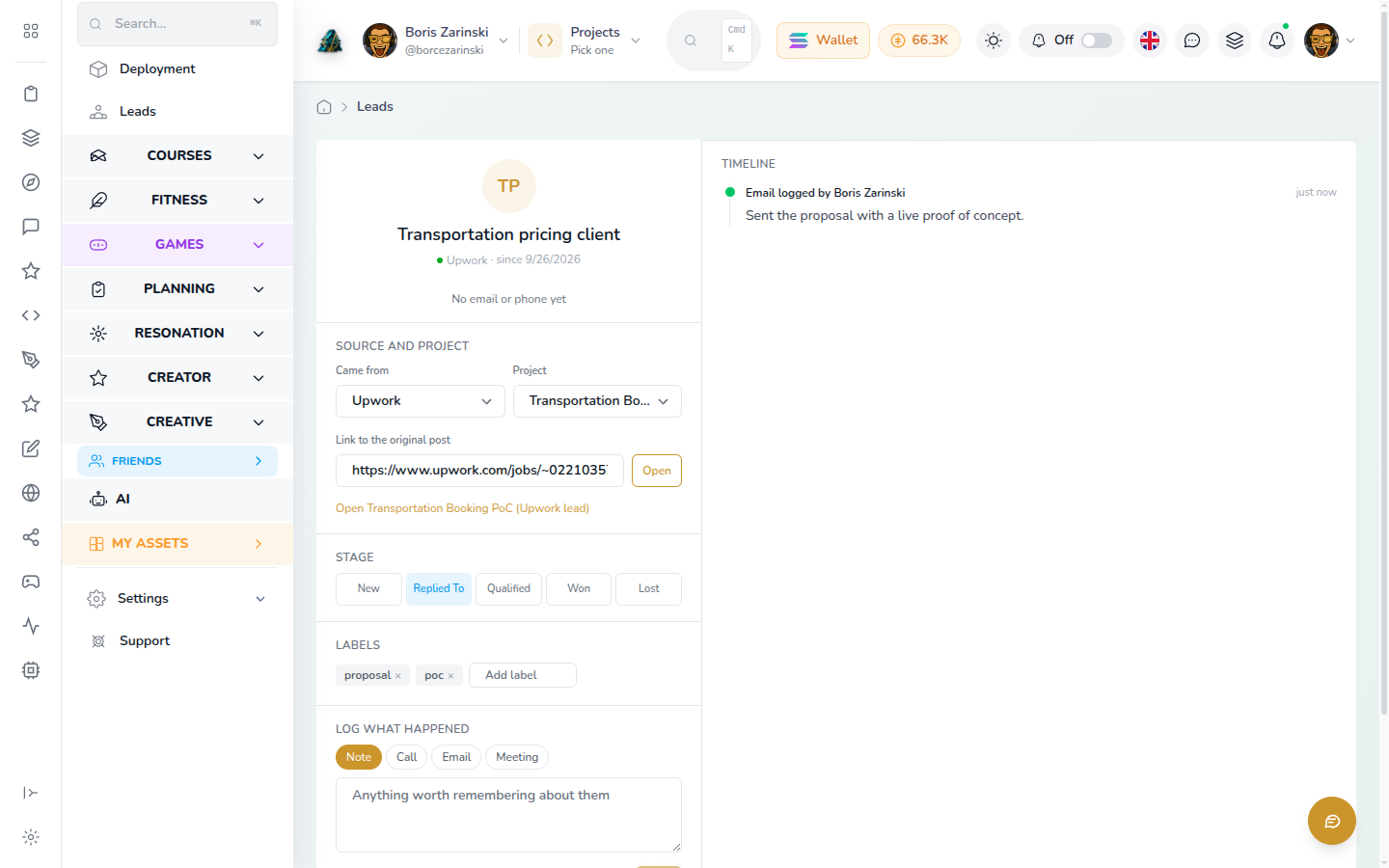
Click a lead to open it, or Open full page. In Source and project you can correct the source, open or change the original post, move the lead to another project or clear it, and jump to the project.
Below that, move the lead through New, Replied To, Qualified, Won or Lost, and log what happened. Logging a call, email or meeting counts as replying, so the lead moves to Replied To by itself; a note does not.
On your phone
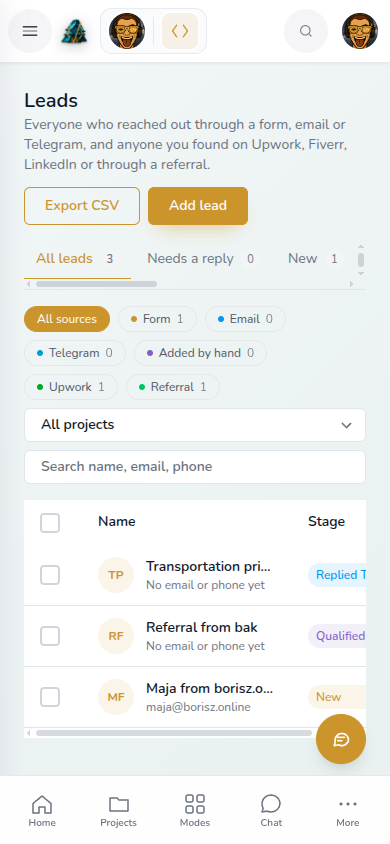
The same list works on a phone: the source chips wrap and the project filter sits above the search.
From an AI agent
Agents connected over MCP use the same records:
leads_create({full_name: "Transportation pricing client", source: "upwork", source_url: "https://www.upwork.com/jobs/~0221...", project_id: 64, labels: ["proposal"]})leads_list({project_id: 64})lists every lead on that project.leads_update({lead_id, project_id})links a lead later;clear_project: trueunlinks it.
A lead can only link to a project in the same place it lives: a personal lead to your personal projects, a team lead to that team's projects.
Export CSV includes the source, the original post link and the project name.