
Getting started
Sign in or create an account
- Go to weddings.devghouse.com and click Create your invitation.
- Choose Sign In if you already have a DevGhouse account, or Create Account if you're new.
- On Create Account, fill in your name, email, and a password, tell it whether you're the bride or the groom, and agree to the terms. You can also continue with Google, GitHub, or another connected account instead of a password.
- Submit the form. You're taken straight into wedding setup, already signed in.
Secure your wedding
The first screen after signing up is the entry fee. This is a one-time payment, not a subscription, and it's what turns on everything else in Weddings for your account. Pick Crypto or PayPal and the screen fills in with the chain and token to pay with.
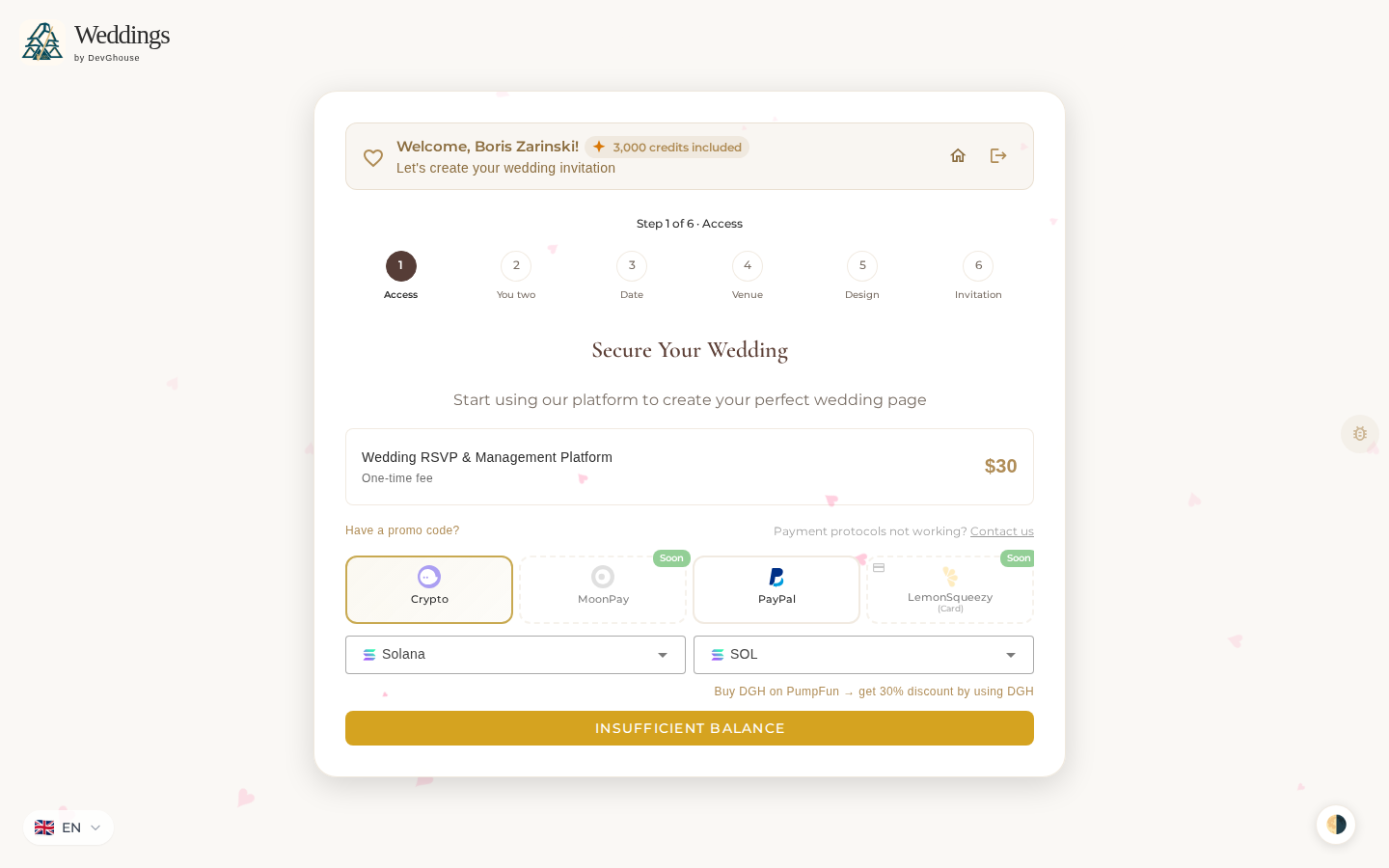
What the fee includes, shown right on the screen:
- Up to 2,000 guests
- 3,000 credits in your wedding wallet
- AI image and video generation
- The custom invite builder
- Every template in the gallery
- Task management for your wedding to-dos
Pay with crypto or PayPal. Card payment through MoonPay and LemonSqueezy is marked Soon and isn't available yet. If you have a promo code from a partner or vendor, click Have a promo code? above the payment options and enter it before you pay; a valid code applies a deeper discount than the standard 5% referral discount.
Once payment goes through, you're moved on to setting up your wedding.
Set up your wedding
Setup is a short, six-step wizard. You can leave and come back later; your answers are saved as you go.
- Access – the entry fee step above.
- You two – upload a couple photo (or individual photos), and enter the bride's and groom's names.
- Date – your wedding date and time. Don't have a date yet? You can move forward without one and add it later.
- Venue – search for your venue by name or address; it's placed on a map automatically.
- Design – pick a starting template for your invitation. You can change this later from the invite builder.
- Invitation – generate a link to invite your partner to co-plan the wedding with you. This step is optional; you can skip it and invite your partner later from settings.
When you finish, you land on your dashboard with your invitation ready to build on.
Signing back in later
Next time, go to weddings.devghouse.com and sign in with the same account. If you've already paid and finished setup, you're taken straight to your dashboard; if you started setup but didn't finish, you're returned to the exact step you left off on.