
Getting started
1. Create your account
- Go to marketplace.devghouse.com and click Sign in, or go straight to app.devghouse.com/register.
- Fill in your name, a username, your email, and a password, and accept the terms.
- Click Sign Up. You land on a short setup screen; click Skip for now if you do not have a beta code.
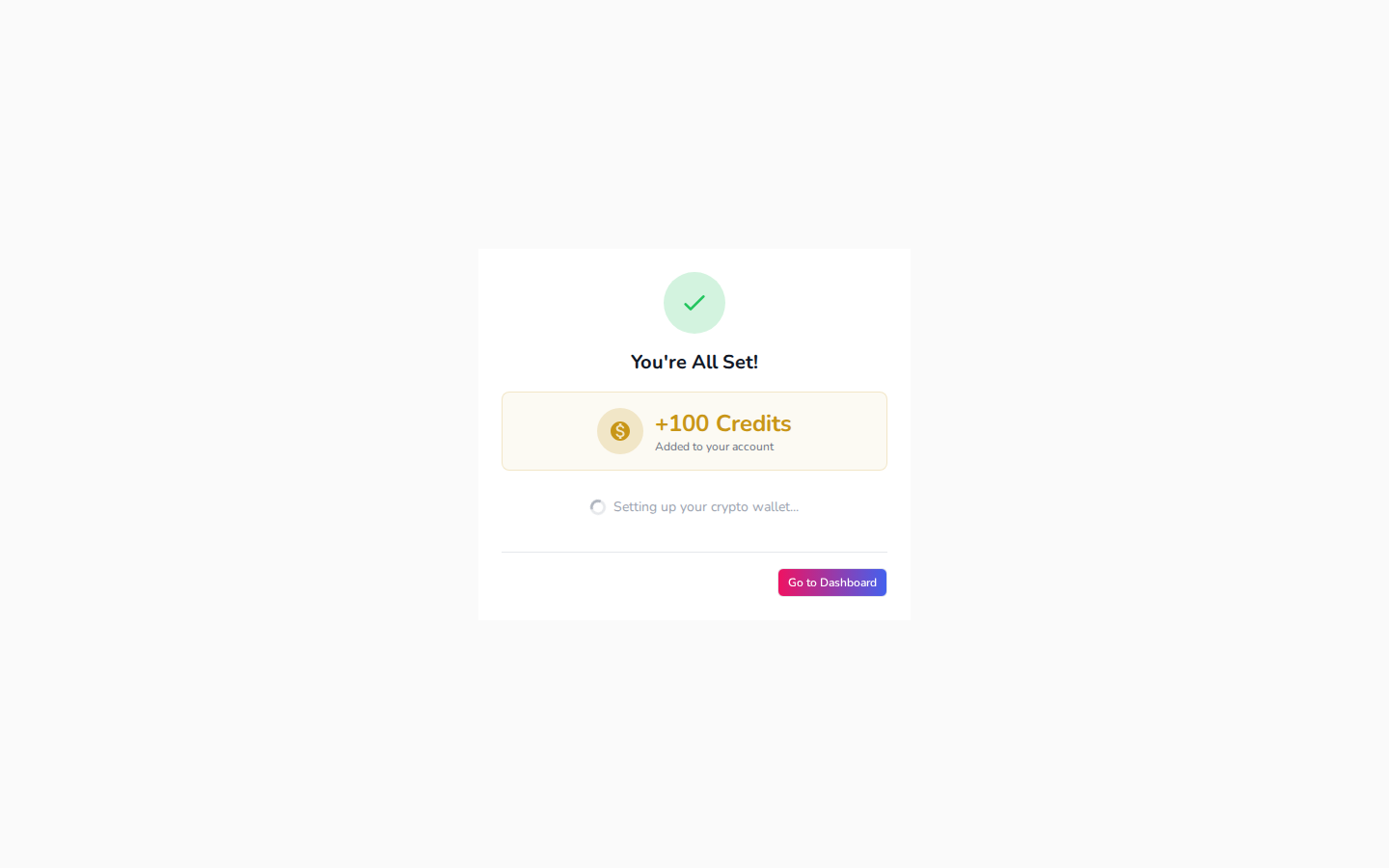
Your account now has starting credits, shared across every DevGhouse product, and you are signed in to Marketplace as well.
2. Decide: buying, selling, or both
The first time you open a Marketplace page that needs an account (browsing is open to anyone signed out), you land on a short entry step.
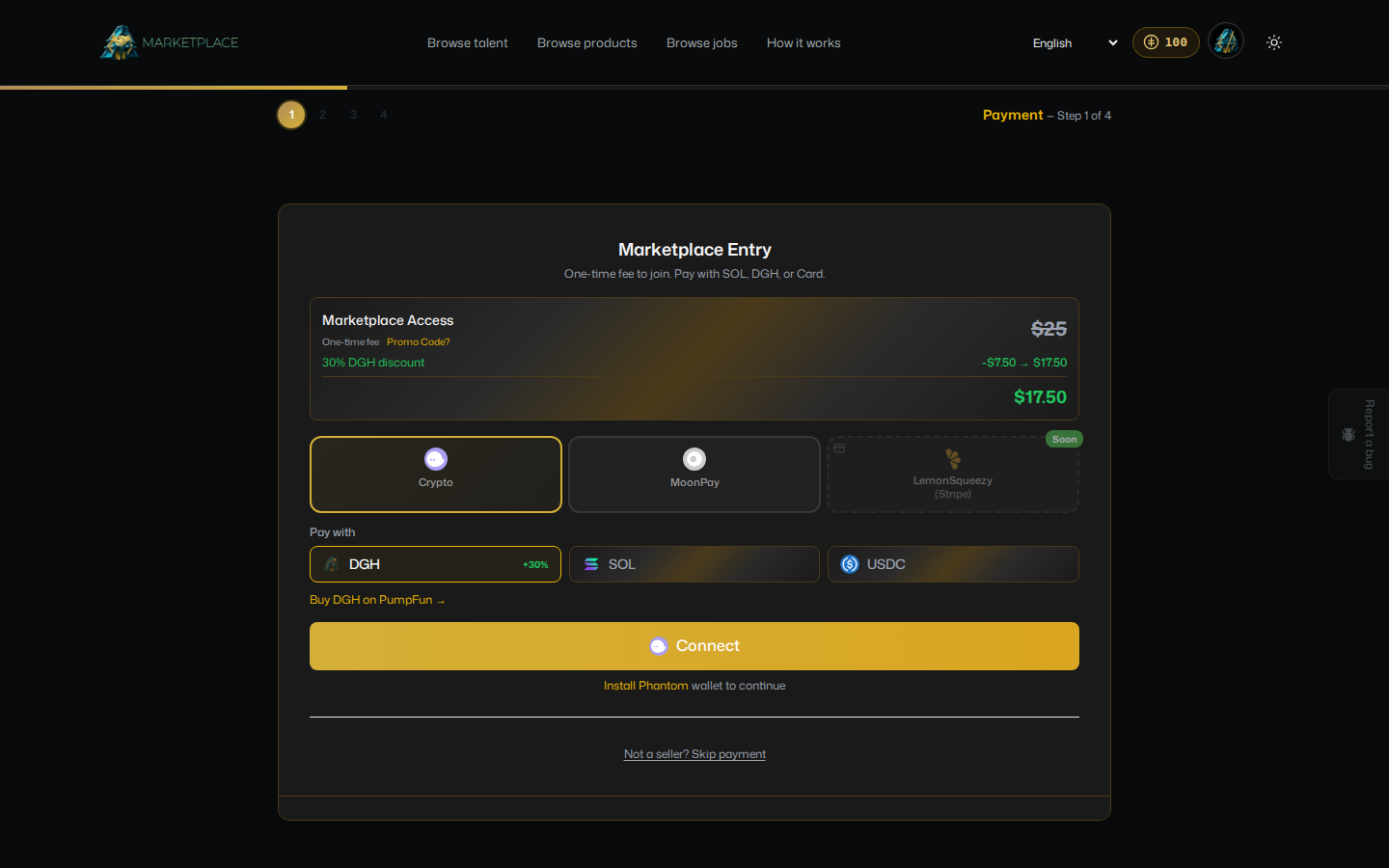
- Planning to sell your own services or products? Pay the one-time entry fee shown on screen, with SOL, DGH (usually cheaper), or a card. This unlocks listing services, applying for jobs, and receiving offers.
- Just here to hire or buy? Click Not a seller? Skip payment underneath the payment box. You do not need to pay anything to hire someone or buy a product.
3. If you're selling: fill in your seller profile
Once the entry fee is paid, your public page opens in your workspace at app.devghouse.com (Marketplace > My page), ready for you to fill in.
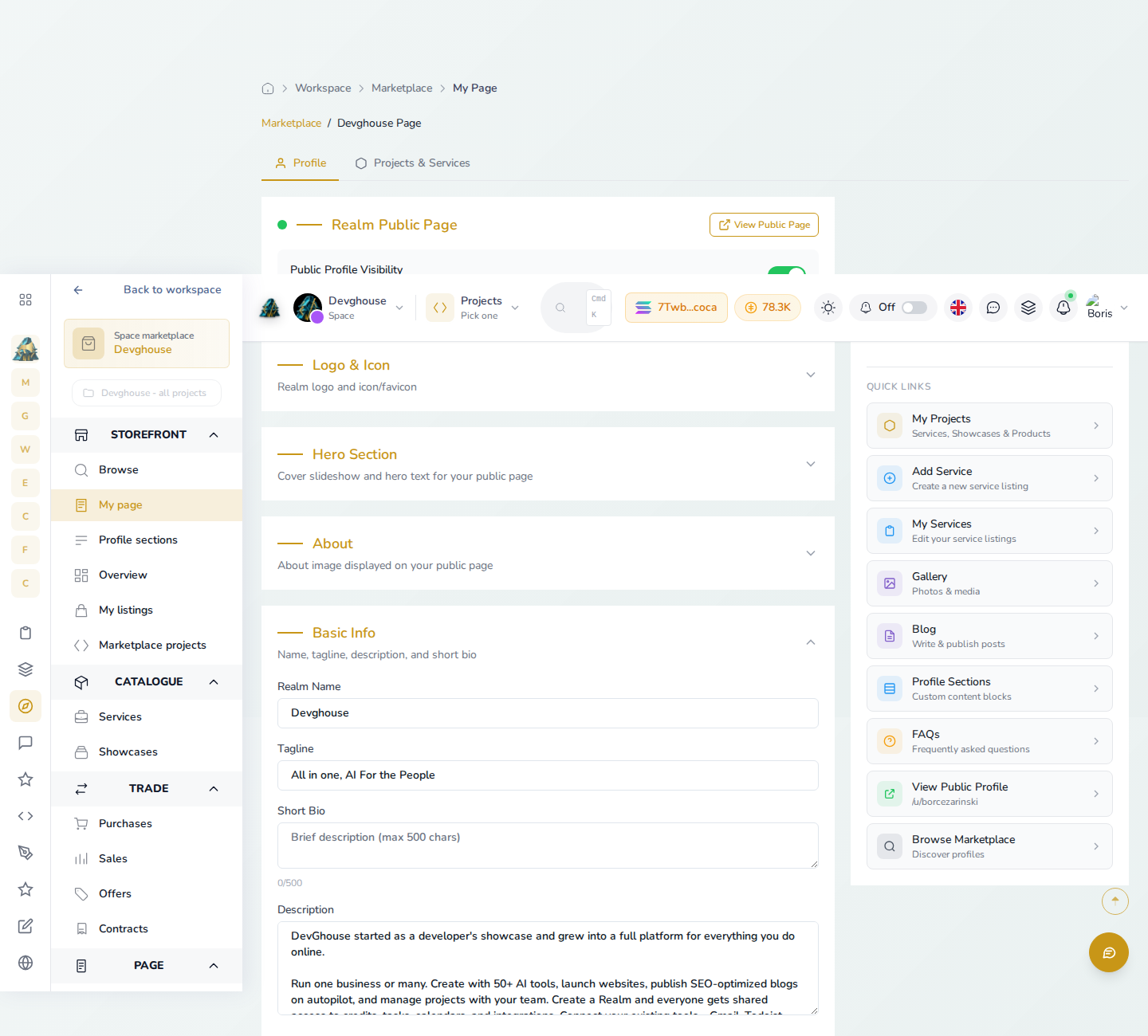
- Open Basic Info and fill in your name (or realm name), a one-line tagline, and a longer description.
- Work down the rest of the sections underneath: Hero Section, About, Skills & Technologies, Work Experience, and the others listed under On This Page on the right.
- Everything saves as you go. Toggle Public Profile Visibility at the top whenever you want the page live or hidden.
4. If you skipped payment: choose your focus
Clicking Skip payment takes you to a short step about what kind of work you do, purely so the platform can suggest relevant talent and jobs later. If you only want to buy or hire, you can skip this too, with Continue as Buyer Only at the bottom of that step.
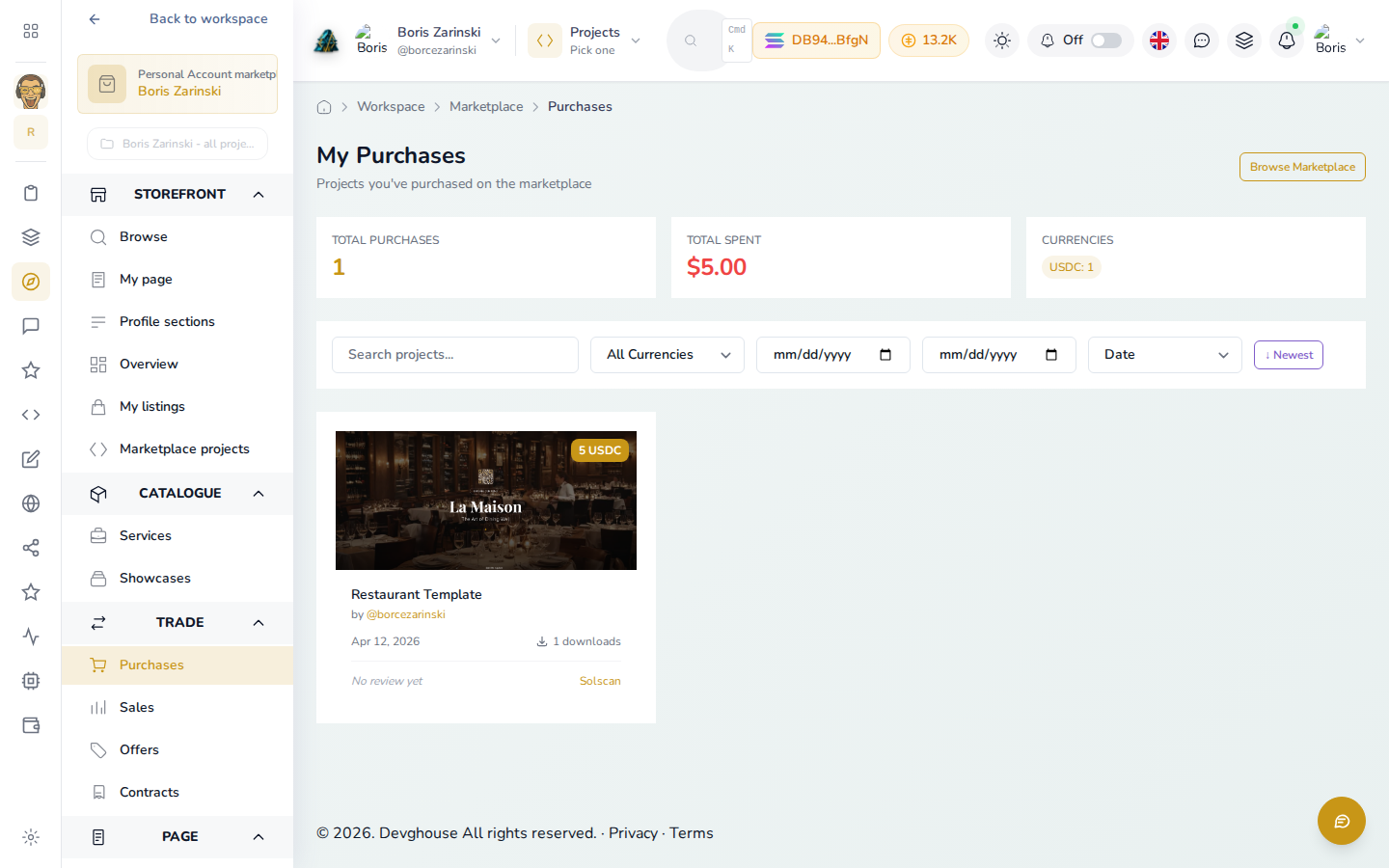
You are instantly set up as a buyer, no seller profile is created, and every browsing and buying feature unlocks right away, including My Purchases under Trade in the sidebar, where anything you buy shows up with its download count. You can always come back and set up a seller profile later from the same place.
5. Where you land
Once you are past this step, the whole site opens up: Browse talent, Browse products, Browse jobs, and, if you paid the entry fee, Post Job and a seller dashboard. See Browsing and buying to start looking around, or Hiring and jobs if you already know you want to hire someone.