
MCP Server
MCP stands for Model Context Protocol. It is an open standard that lets an AI assistant call the same tools DevGhouse itself uses, inside your own account. Once you connect it, you can ask Claude (or another MCP-compatible assistant) to create a task, send an email, browse your code, or check your credits, in plain conversation, instead of clicking through the app yourself.
You get one MCP token per account. It is personal: keep it as secret as a password, and anyone who has it can act as you inside DevGhouse.
Connect an AI assistant
- In DevGhouse, click your account picture in the top right corner.
- Click MCP Token in the menu that opens. The MCP Token window opens with your personal token already generated. Keep this window open. It shows two ways to connect, one for Claude.ai in the browser and one for a coding tool.
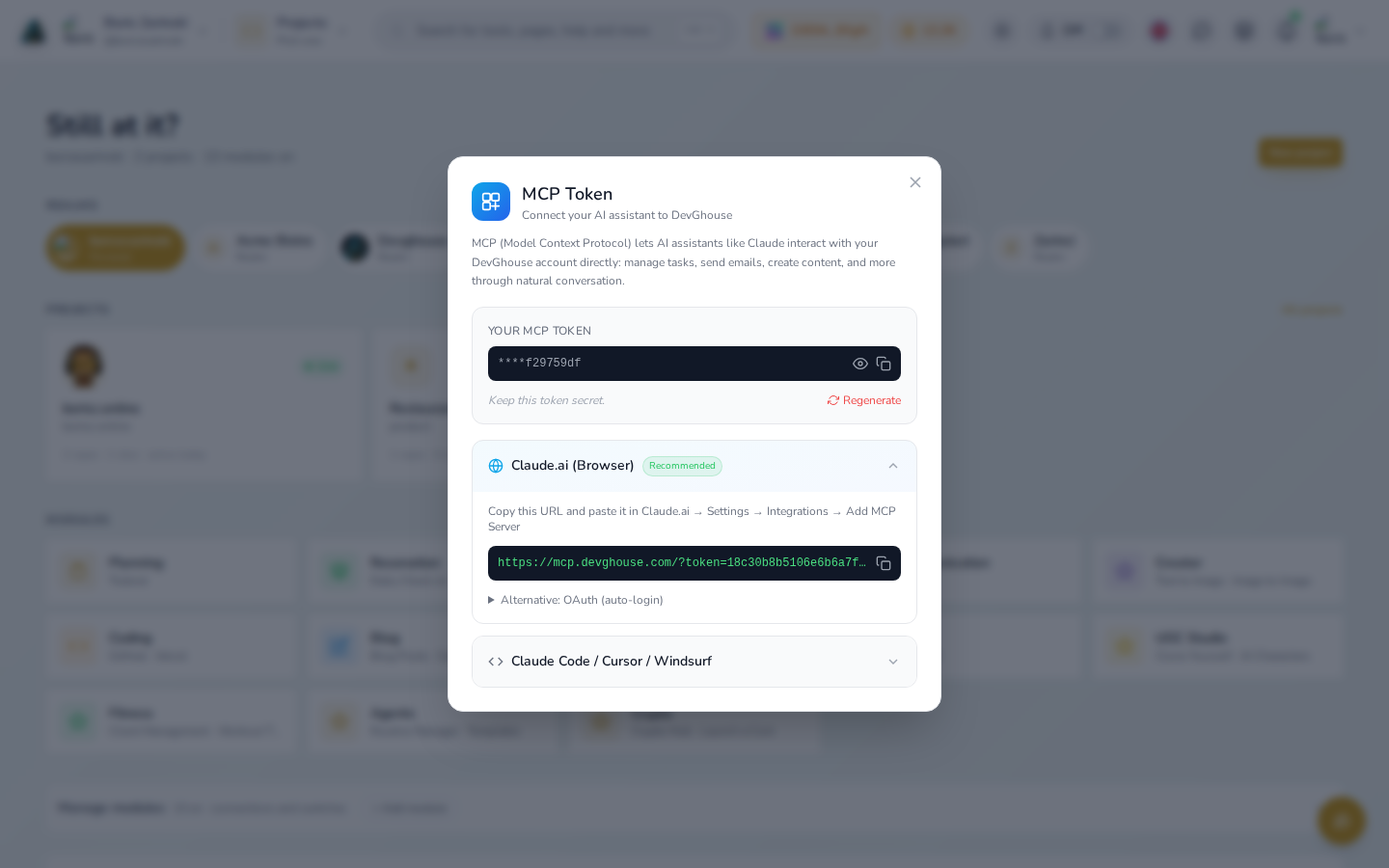
- For Claude.ai in your browser (the easiest way): with the Claude.ai (Browser) section expanded, click the connection URL field and press the copy icon next to it.
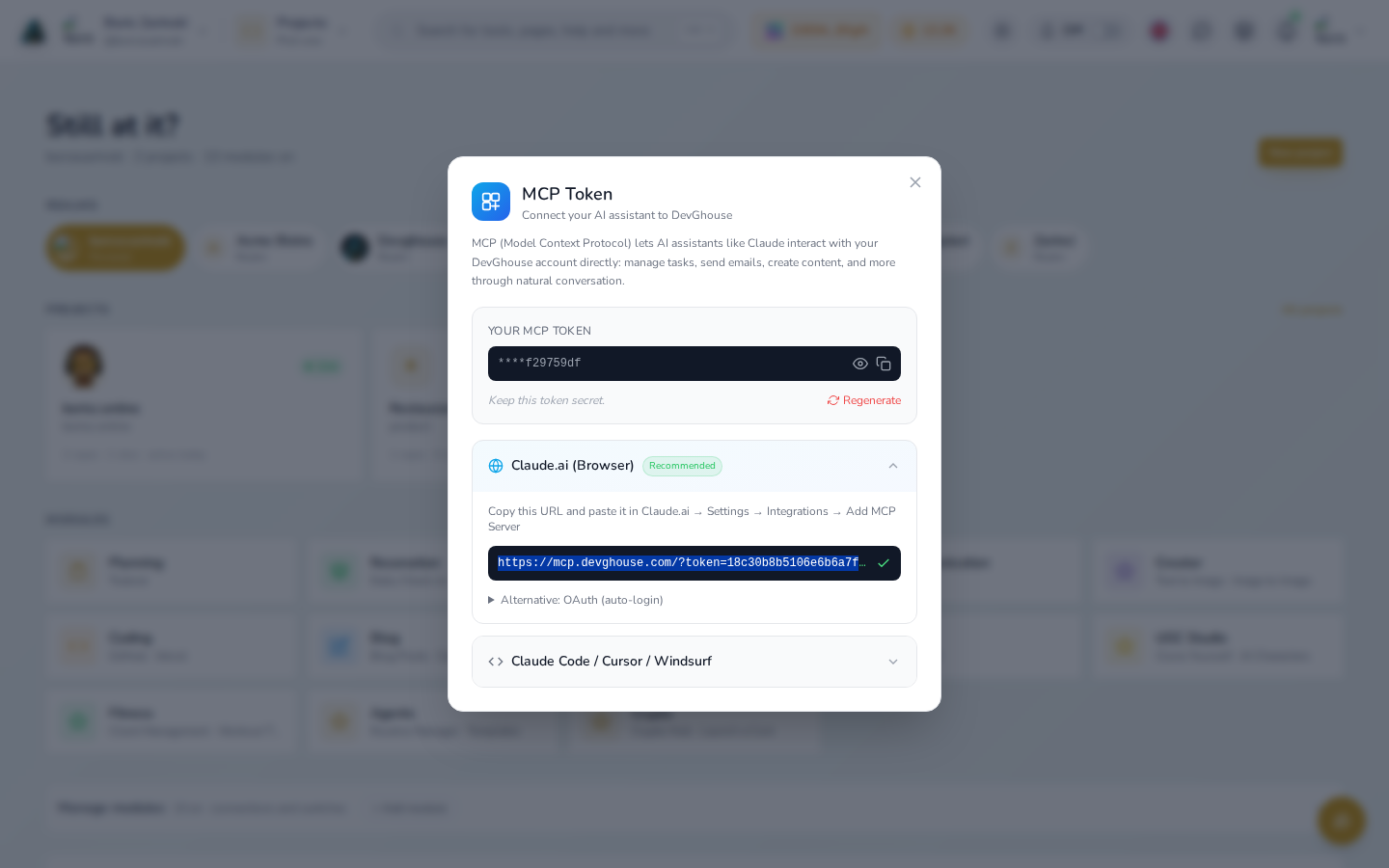
- In Claude, go to Settings → Integrations → Add MCP Server and paste the URL in.
- For Claude Code, Cursor, or Windsurf: click Claude Code / Cursor / Windsurf to expand that section, then copy the command shown.
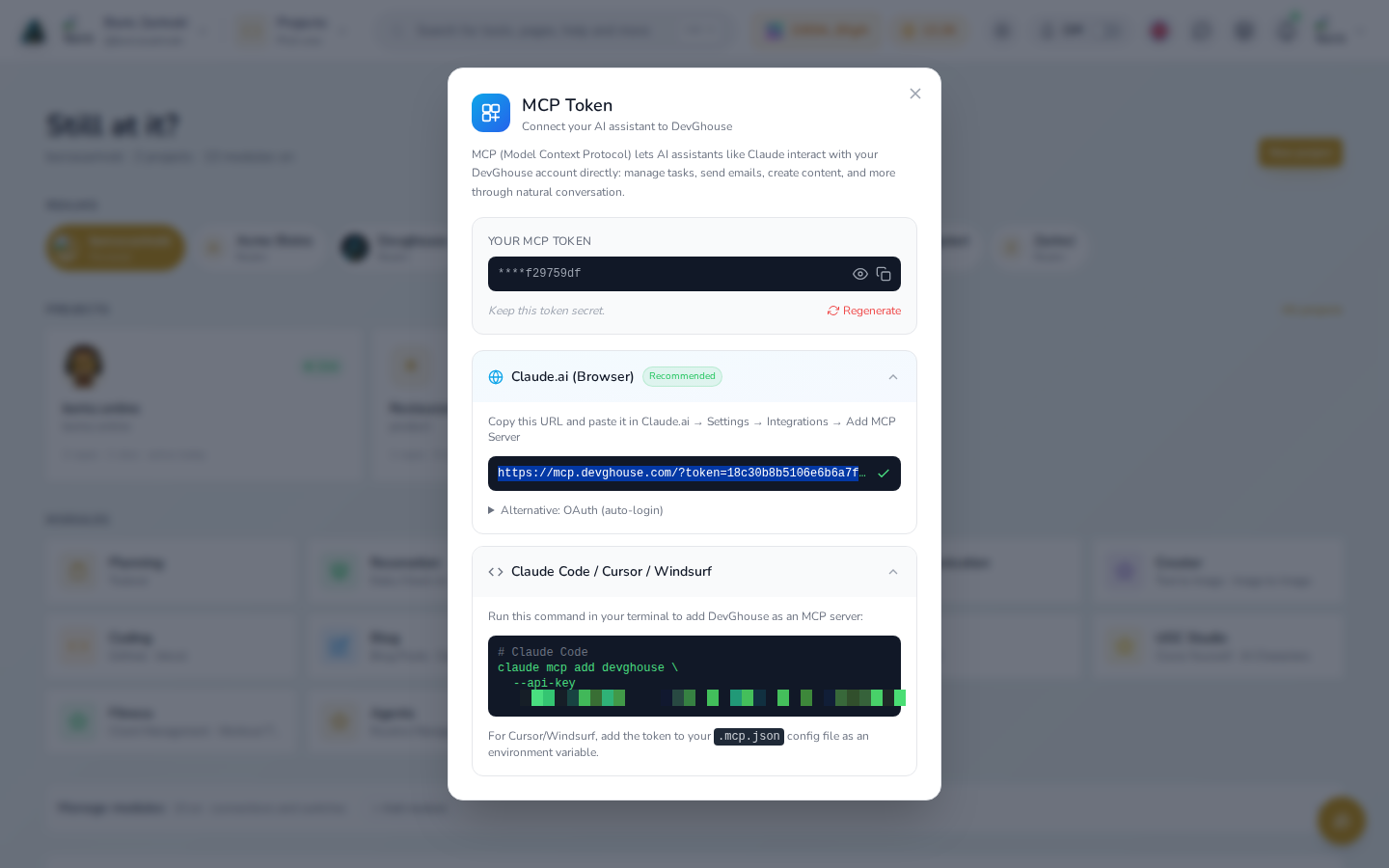
- Paste that command into your terminal and run it. For Cursor or Windsurf, add the token to your project's
.mcp.jsonfile as an environment variable instead. - Restart Claude, or your coding tool, so it picks up the new server. Its tools then appear under a name starting with
devghouse.
If you are in a shared workspace (a realm) rather than your personal account, the window shows a Realm MCP Token instead. It is still yours and only yours, tied to your membership, and it always acts inside that one workspace. Connecting with your personal token instead lets you pick which workspace a call runs in, one call at a time, using that call's realm_id.
What your assistant can do once connected
Whatever your assistant can do depends on what you have turned on for the account or workspace the token belongs to:
- Always available: your profile, credits balance, API tokens, and the workspaces you belong to.
- Everything else, once its DevGhouse module and its own connection are switched on: create and manage tasks (Todoist), read and send email (Gmail, Outlook), browse and edit code (GitHub), post to X, and more. The rest of this Integrations guide covers each one.
An assistant never sees a service you have not connected, and never reaches a workspace you do not belong to.
If you need to revoke access
If a token ever leaks, or you stop trusting a device or tool that has it, open the same MCP Token window and click Regenerate. The old token stops working immediately and every tool you had connected with it needs the new one. See Managing your connections for more on this.