
Trainer studio
Once you have become a trainer, open Studio from the menu, or go to fitness.devghouse.com/studio. This is where you author your training and manage the clients who buy it, without leaving Fitness.
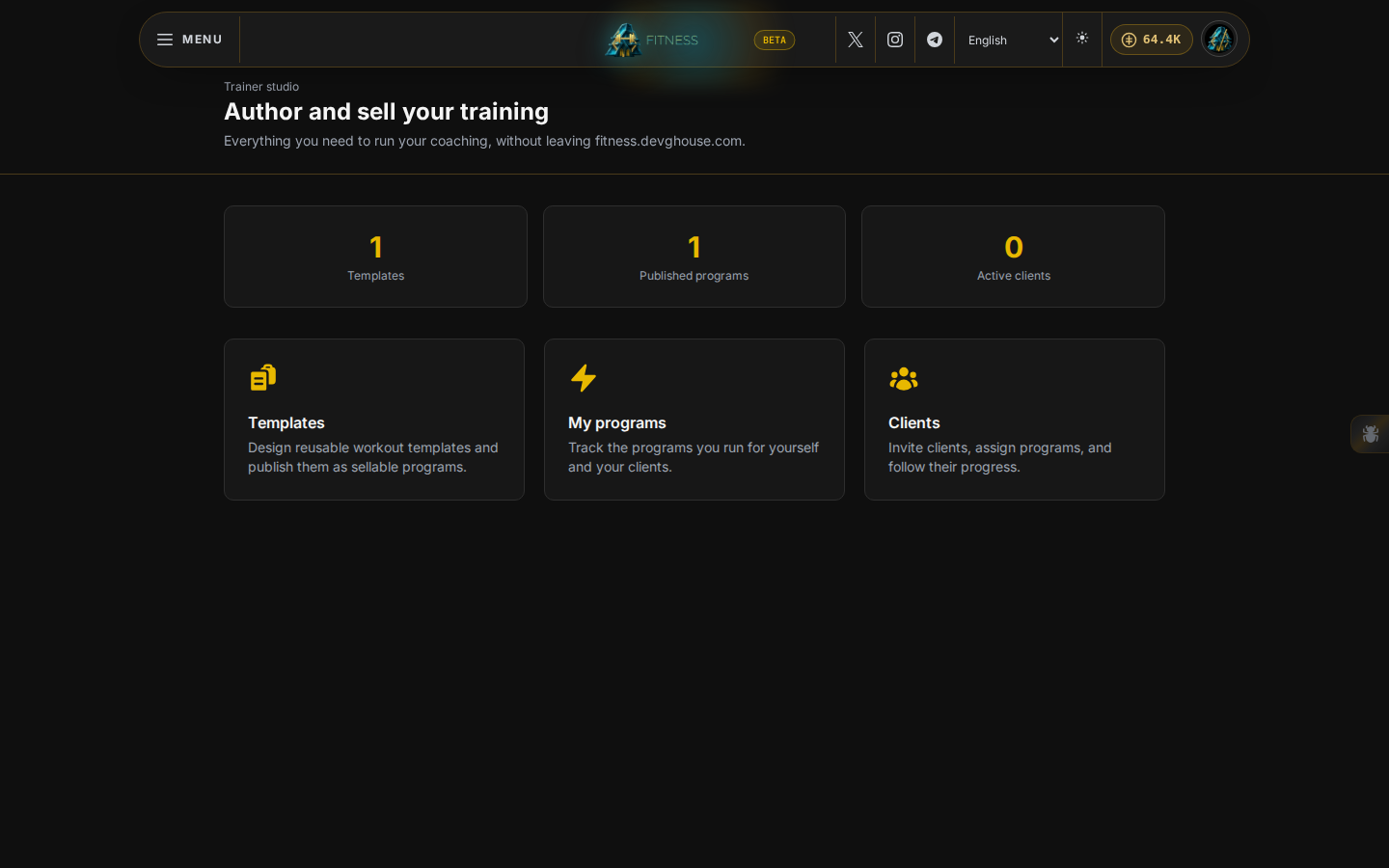
Build a template
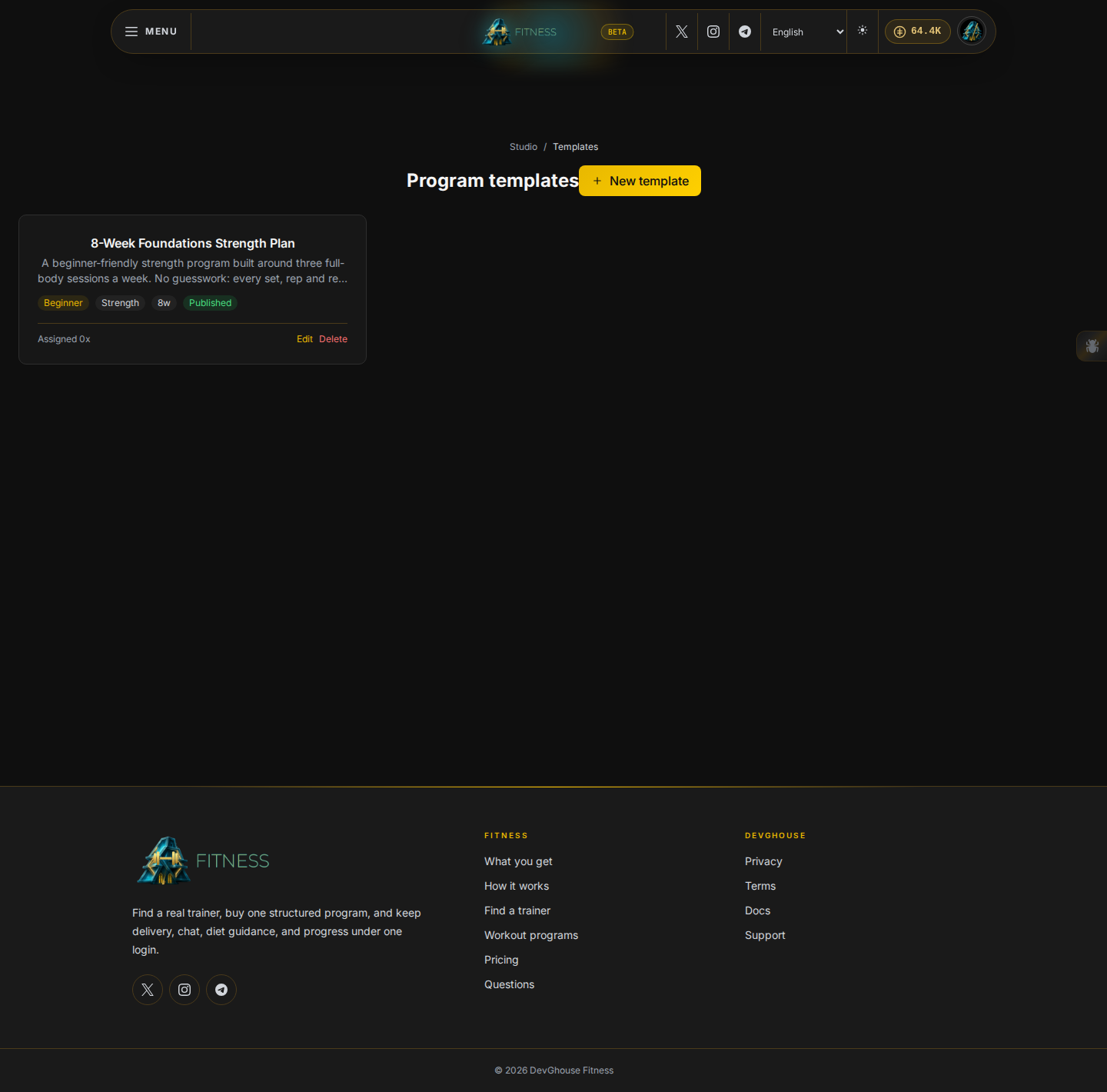
Templates are the reusable workouts you build once and either publish for sale or assign to a client.
- Open Templates, then New template.
- Give it a name, a description, the number of weeks, a difficulty, and a category.
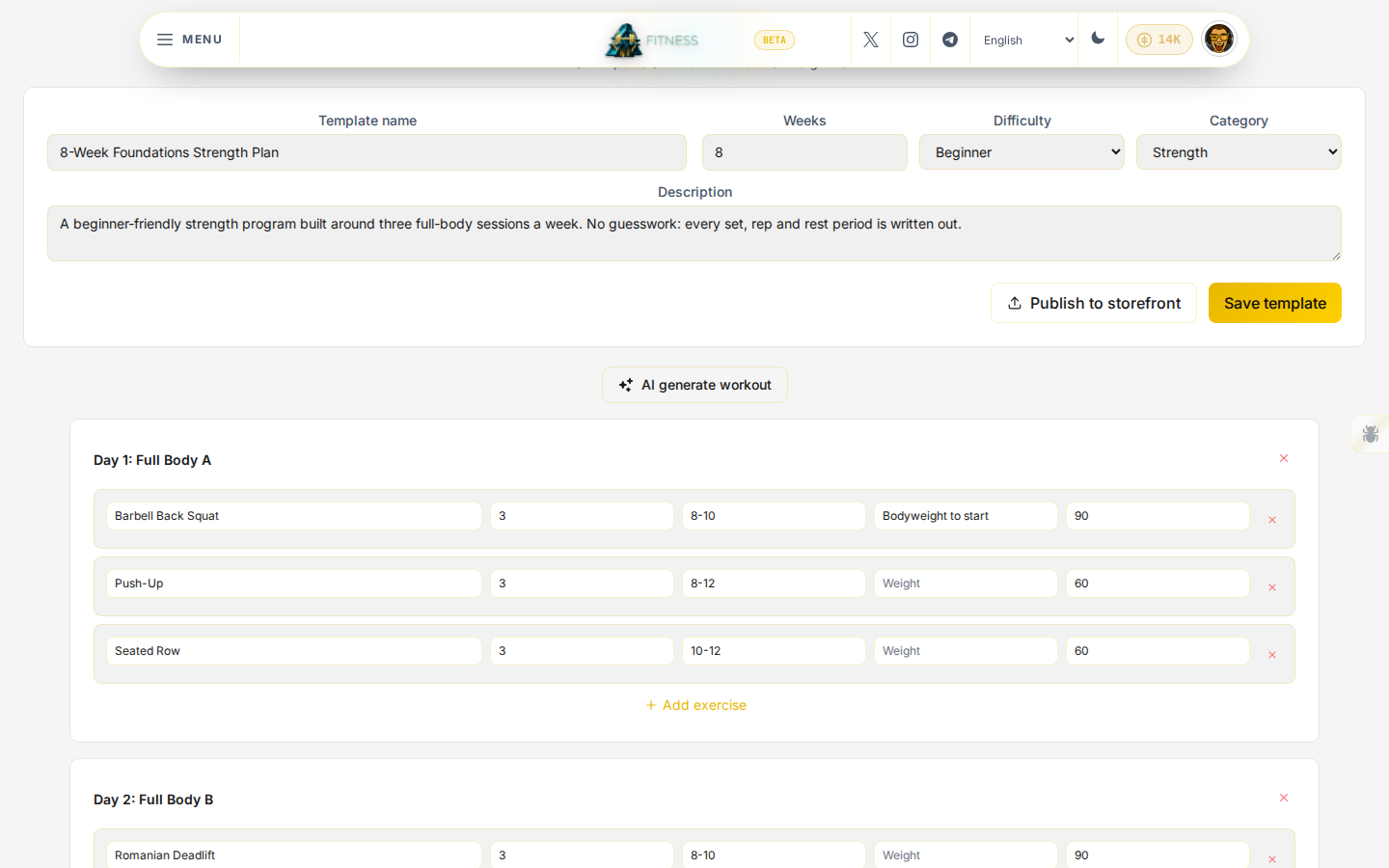
- Click Edit to open it, then build it out day by day: Add section for each training day (for example "Day 1: Full Body A"), then Add exercise inside each section for every movement, with its sets, reps, weight, and rest.
- Click AI generate workout if you would rather describe the goal, days per week, difficulty, and equipment, and let it draft a starting structure for you to edit. This spends credits; the cost is shown before you confirm.
- Click Save template as you go.
Publish it for sale
- From the open template, click Publish to storefront.
- Give the listing a name, a description, a price, and a currency.
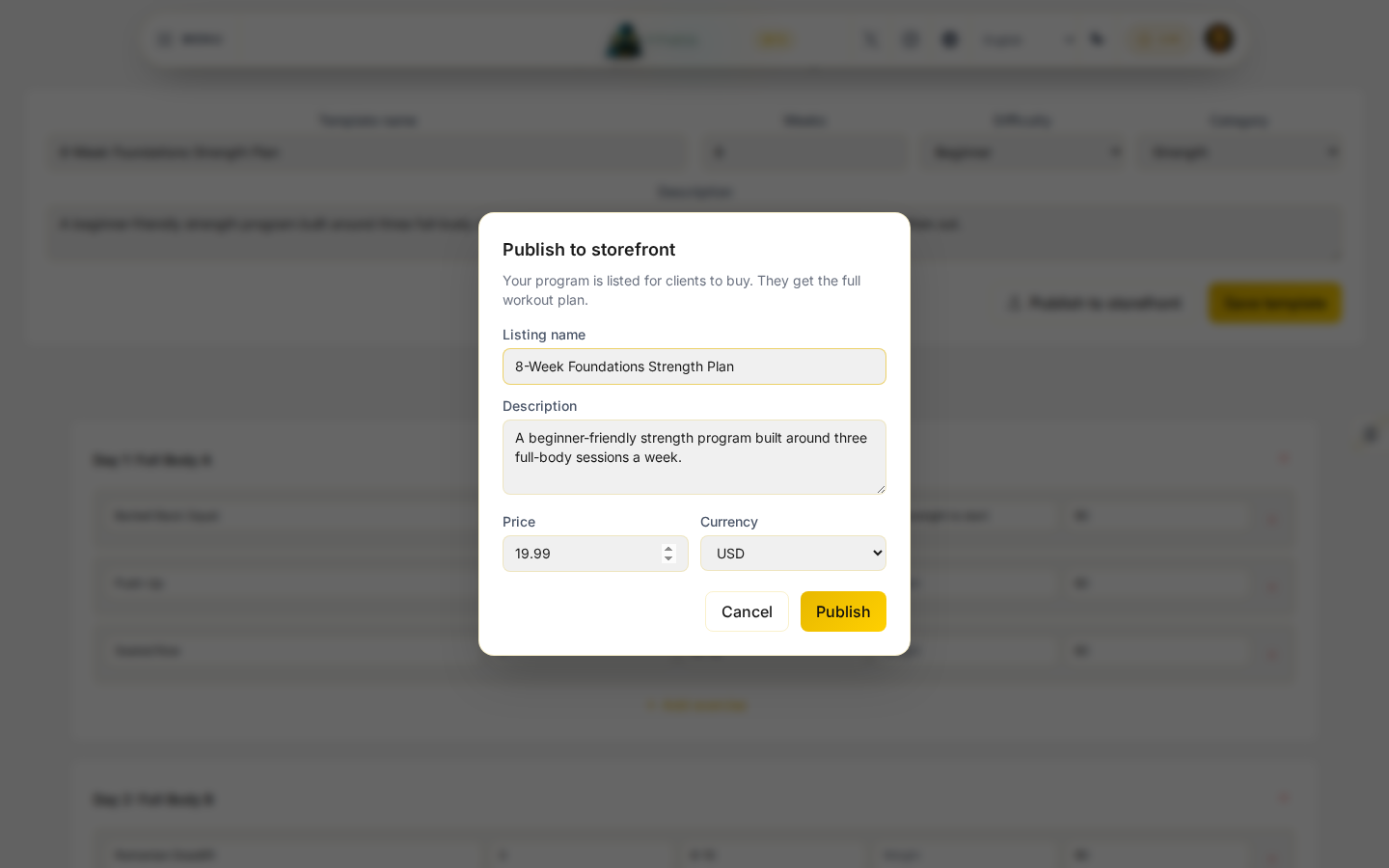
- Click Publish. Your listing now shows a green Published badge and appears in the public programs catalog for anyone to buy.
If Publish tells you your account is not set up as a trainer yet, open Become a trainer and make sure Fitness Instructor is ticked on the type step, then come back and publish again.
Track your own programs
My programs is where you track the programs you are running, whether you built them yourself, assigned them from a template, or bought them from another trainer.
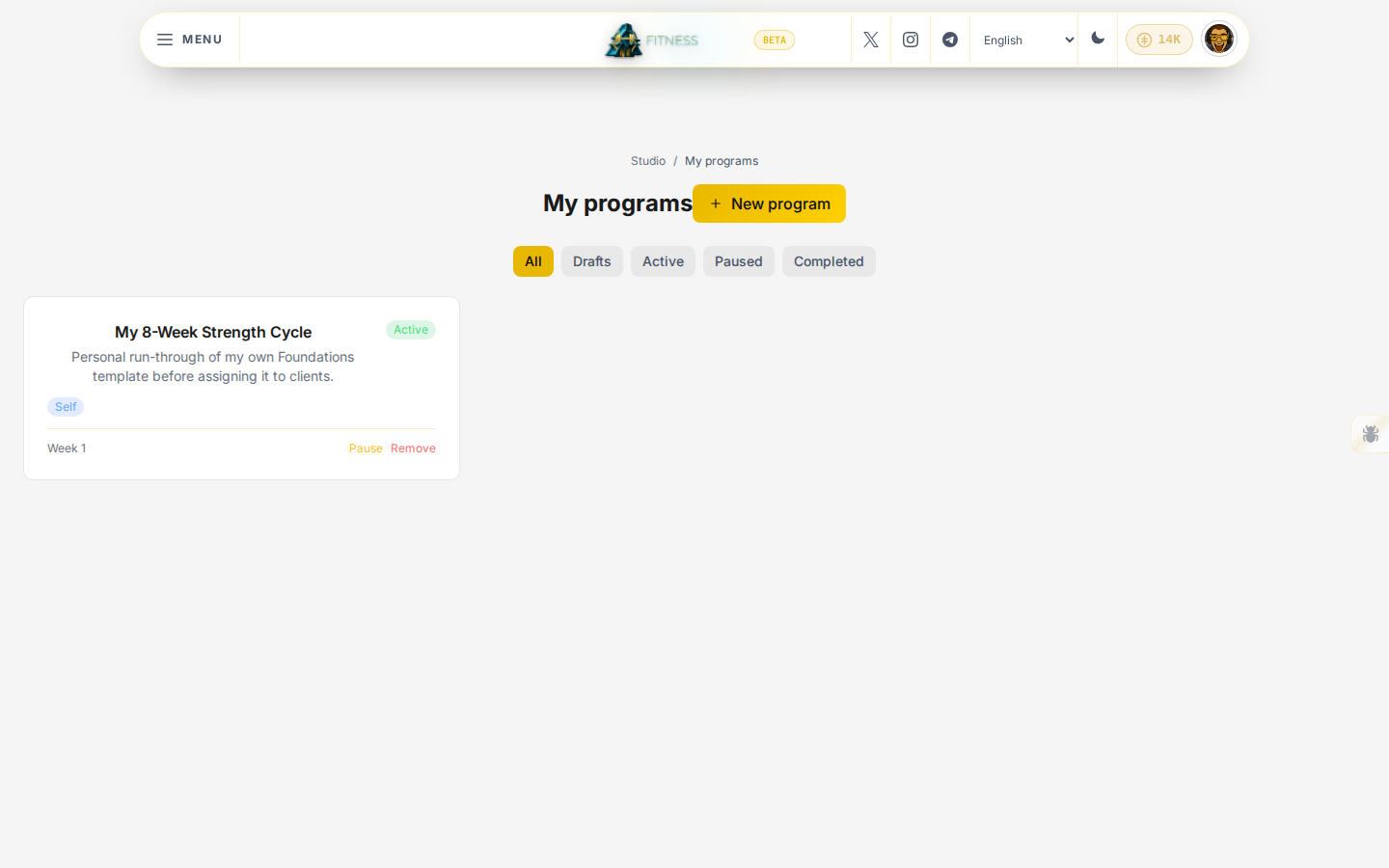
Click New program to start one from scratch, filter by Drafts, Active, Paused, or Completed, and use Pause, Resume, or Remove on any card.
Coach your clients
Clients is your client list and where new coaching relationships start.
- Click Invite client and enter their real username, with optional goals, then Send invitation.
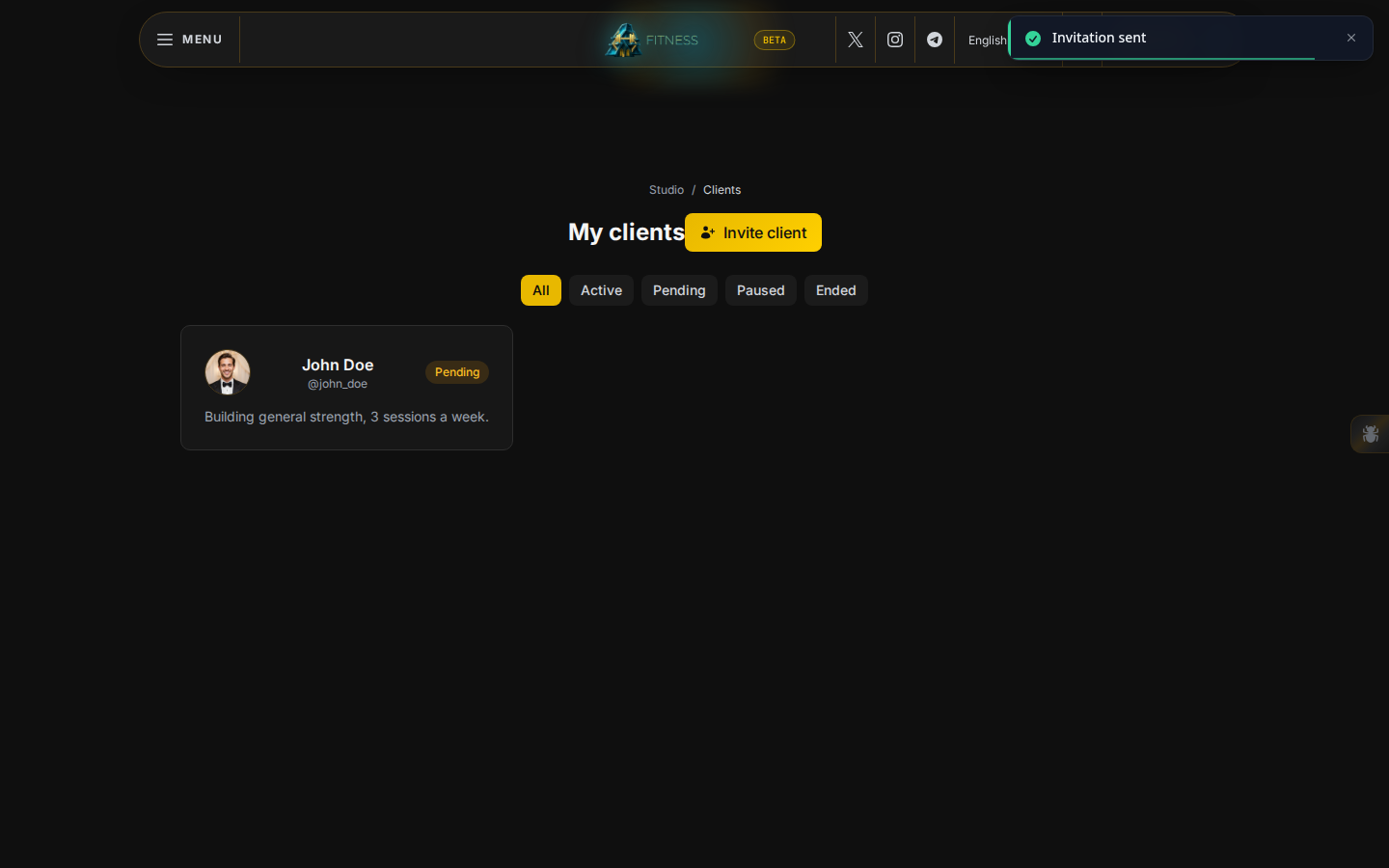
- Once they accept, open their card to see four tabs:
- Progress: their completion percentage, workout streak, total workouts, and recent logs.
- Program: the exercises assigned to them; use Add exercise for a one-off, or Assign template to hand them a full template at once.
- Messages: a direct chat with that client.
- Notes: their goals and your own private coaching notes, visible only to you.
A client can also invite you, or accept an invite you sent them, from the same Clients page on their own account.